 FR
Download Google Authenticator
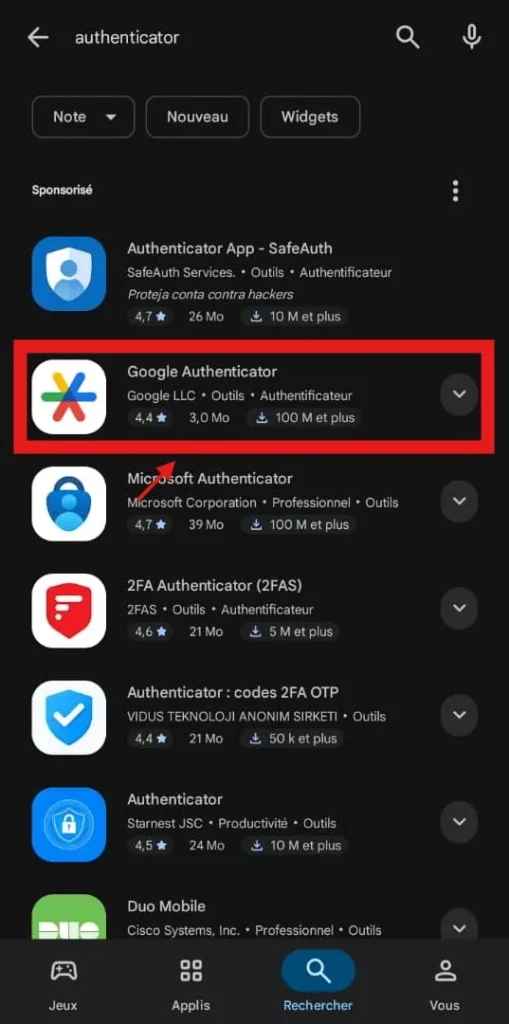
- Open the Google Play Store on Android or the App Store on iPhone.
- Search for “Google Authenticator”.
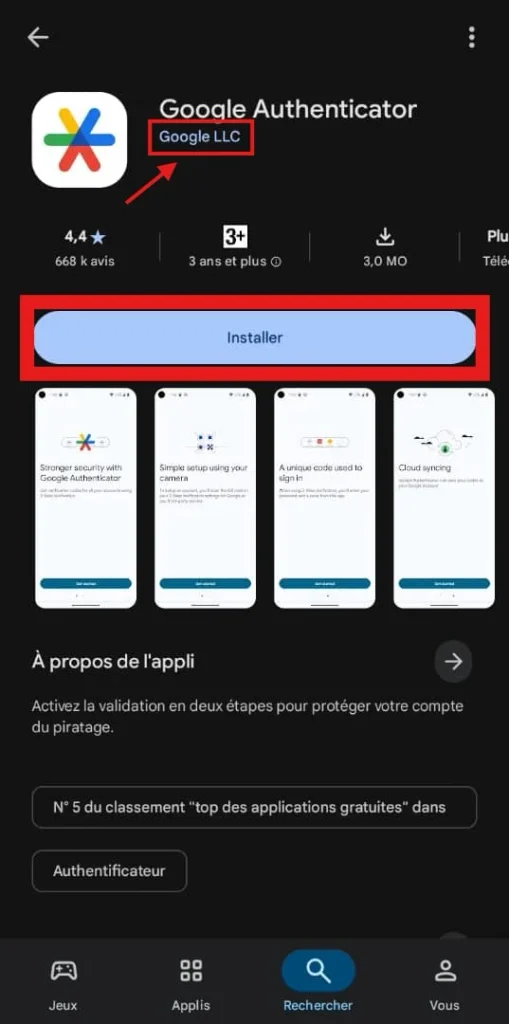
- Make sure the app is published by Google LLC.
- Download and open the app.
Log in to your Betwinner account
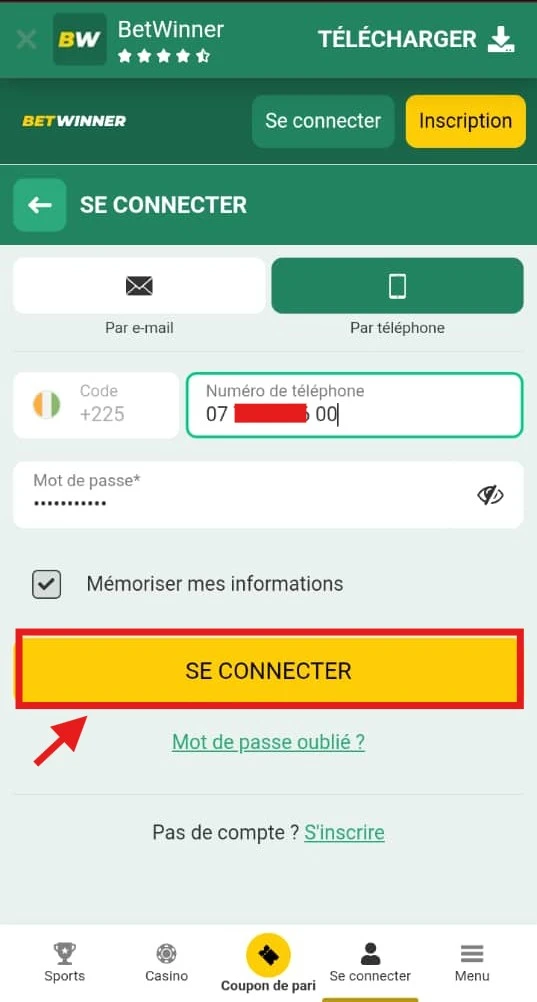
- Go to the official website: betwinner.ci
- Log in to your account.
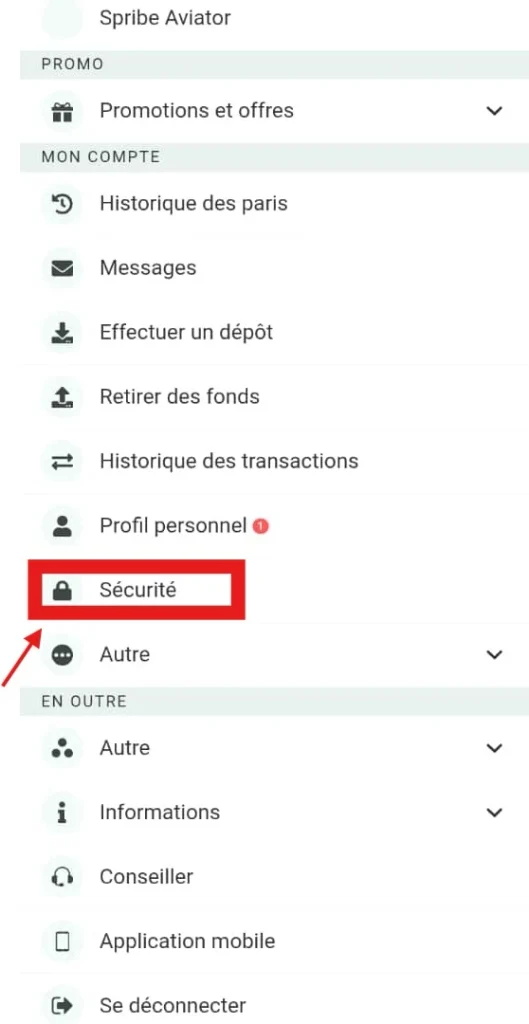
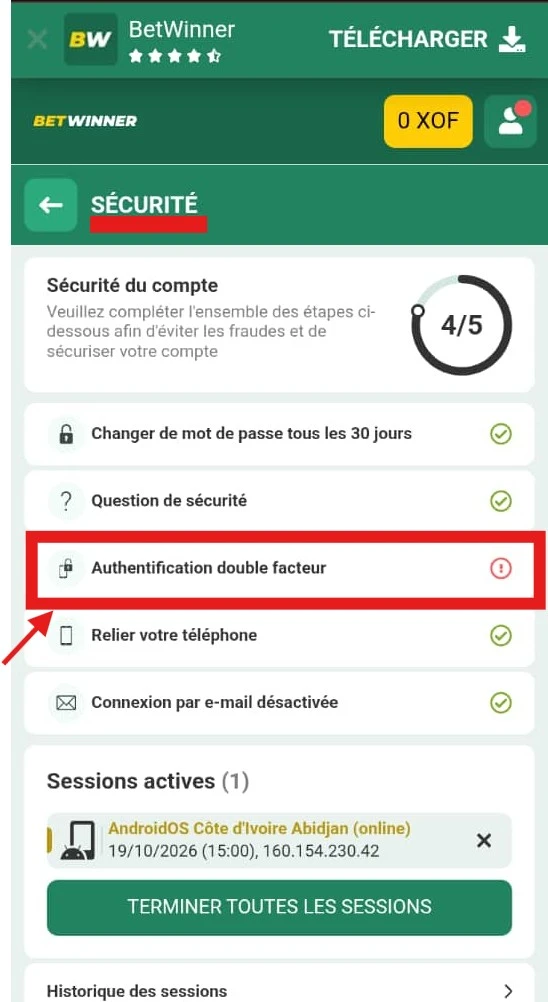
- Open your profile settings and look for the Security section, then select Two-Factor Authentication.
- Follow the on-screen instructions to begin setup.
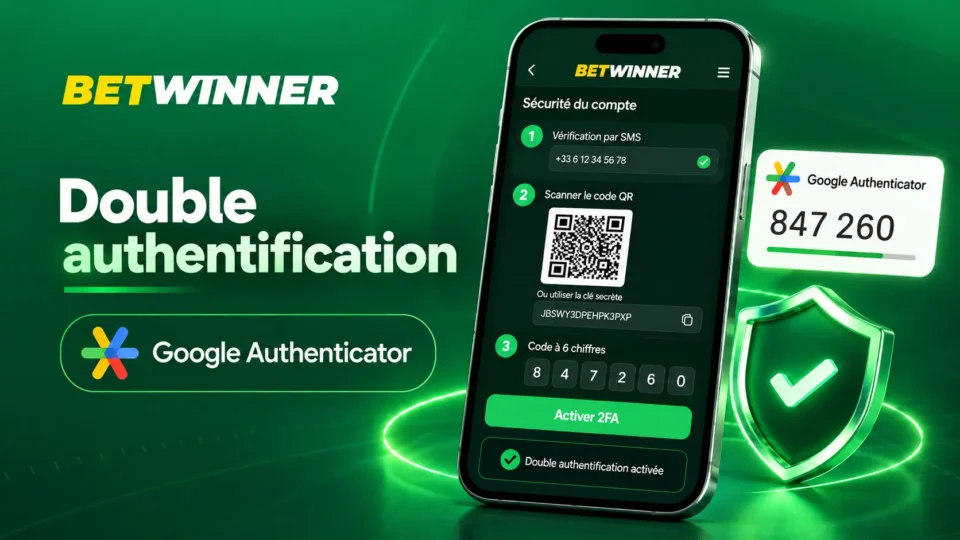
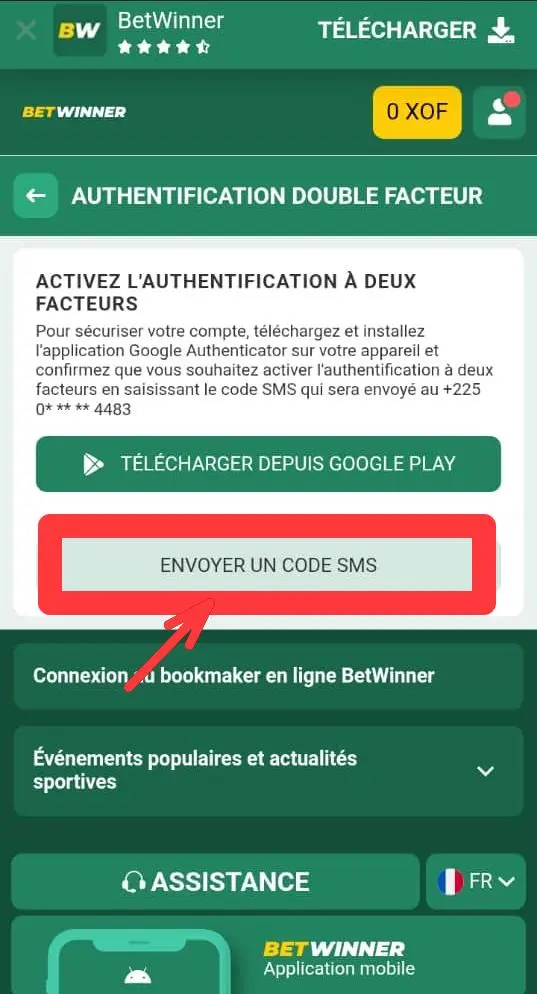
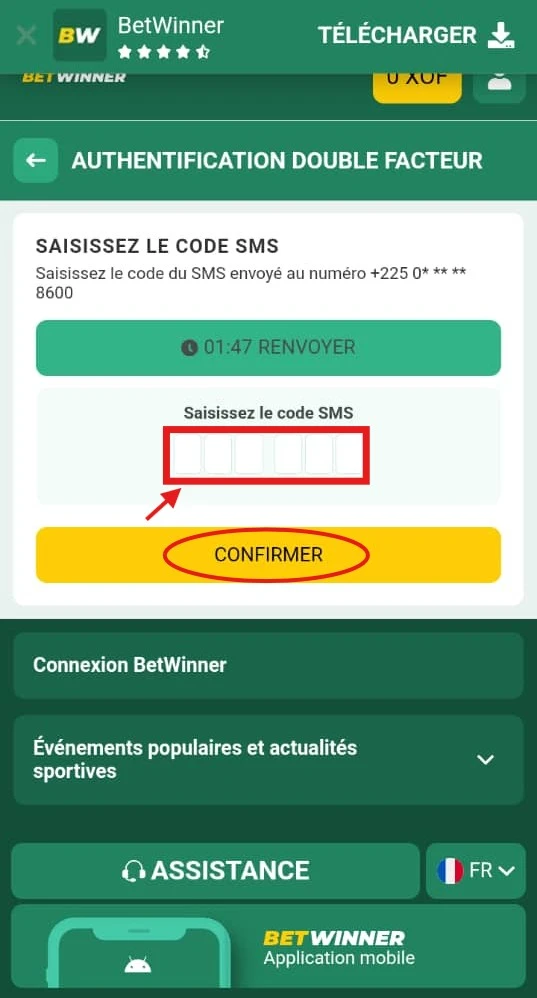
Verify your identity by SMS
- Tap “Send SMS code”.
- Retrieve the code sent to the phone number linked to your account, then enter it in the designated field to continue setup.
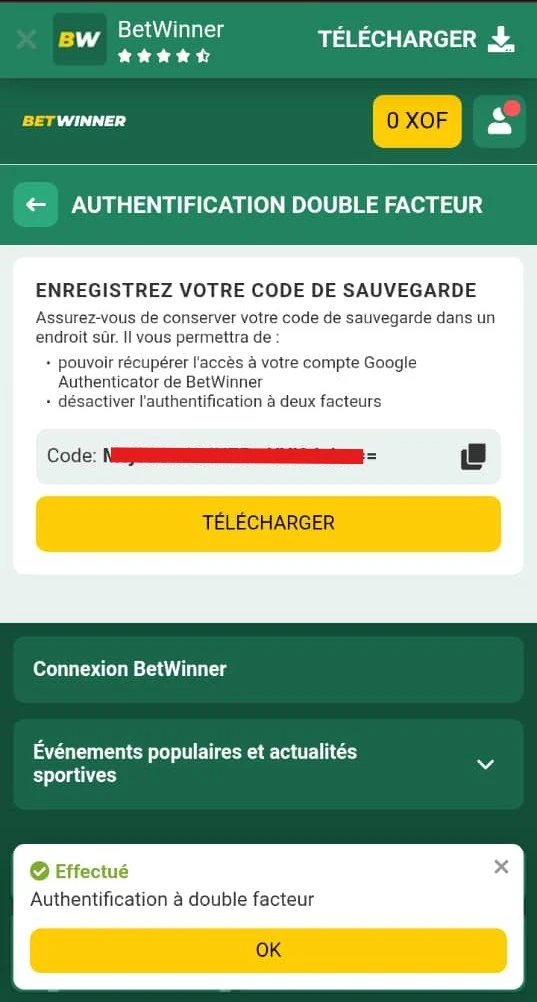
Note:
Make sure to save or download your backup code.
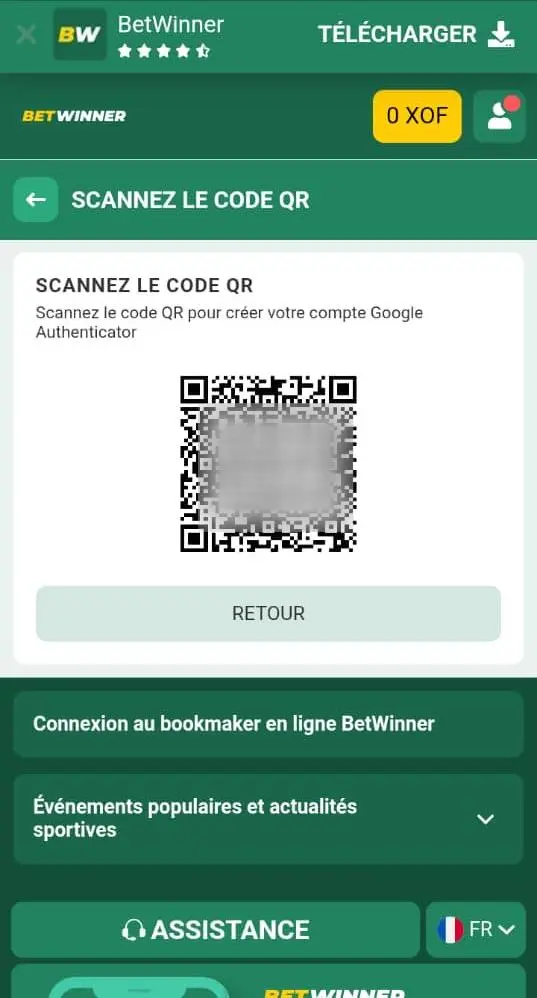
Link your account to Google Authenticator using the QR code
- On Betwinner, select the option to set up authentication using a QR code.
- Open Google Authenticator, add an account, and scan the QR code displayed on the screen.
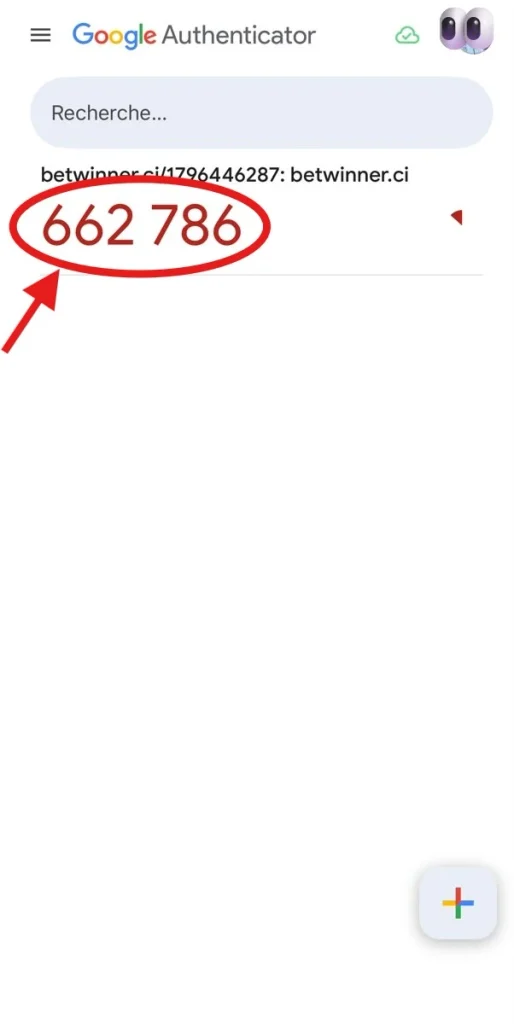
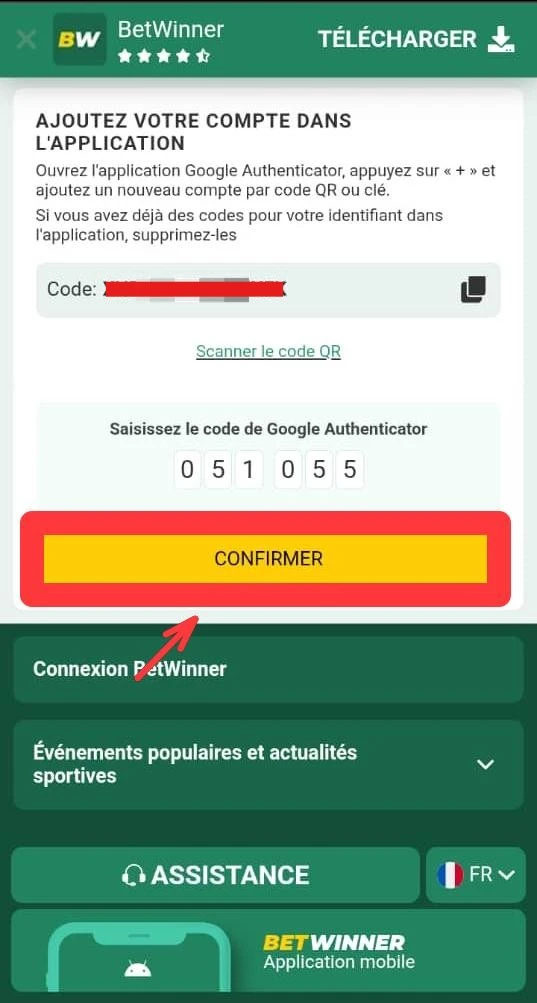
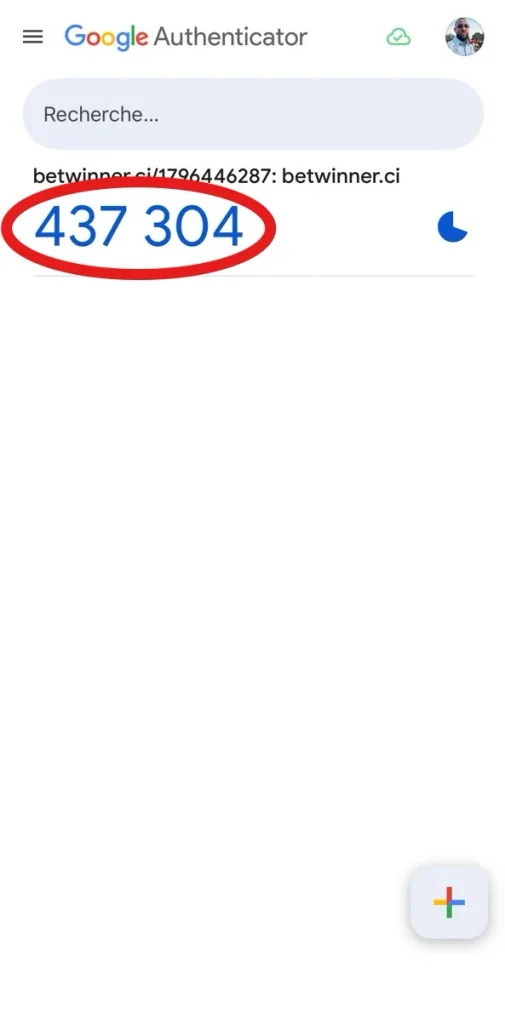
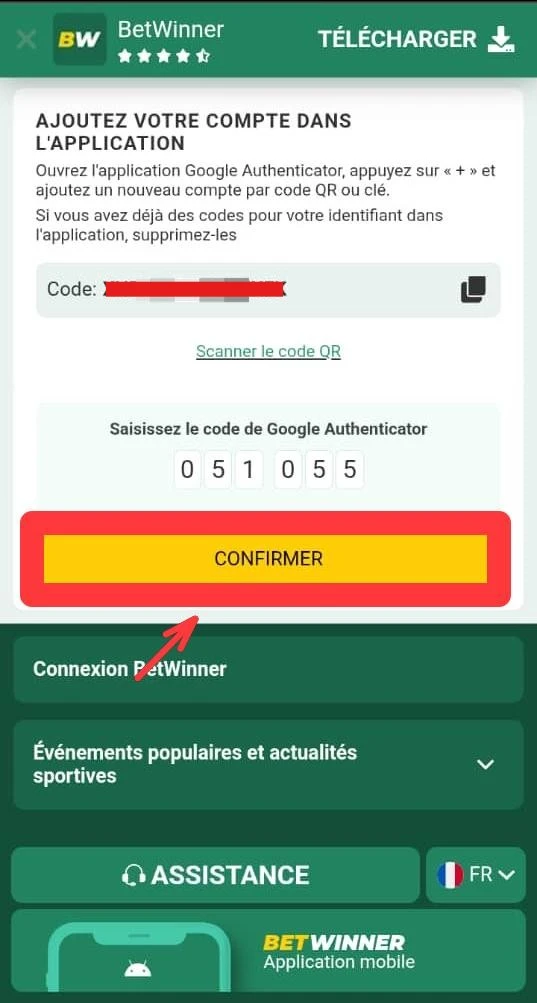
- Once the account has been added, retrieve the six-digit code generated by the app and enter it on Betwinner.
NB :
The code generated by Google Authenticator expires after a few seconds, and a new code is then generated.
Link your account to Google Authenticator using the secret key
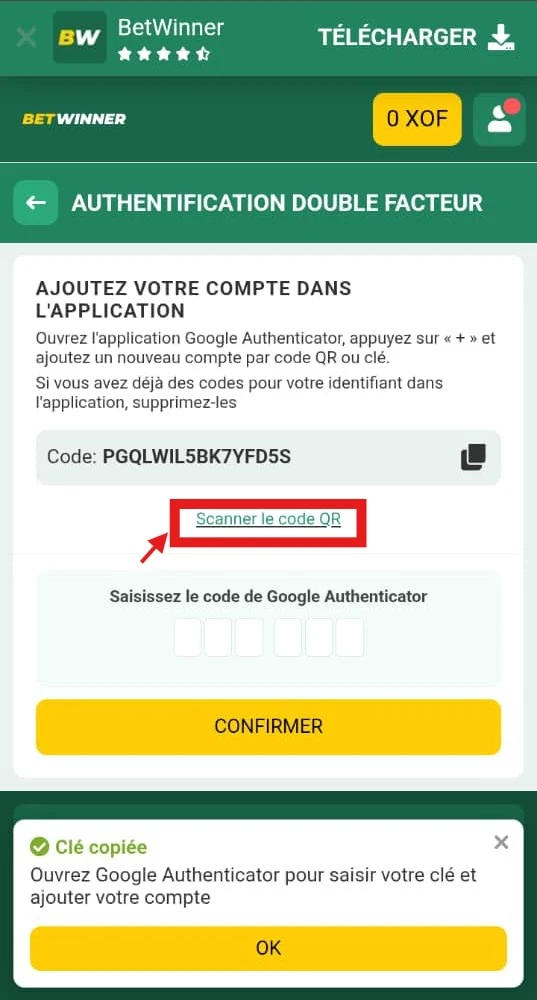
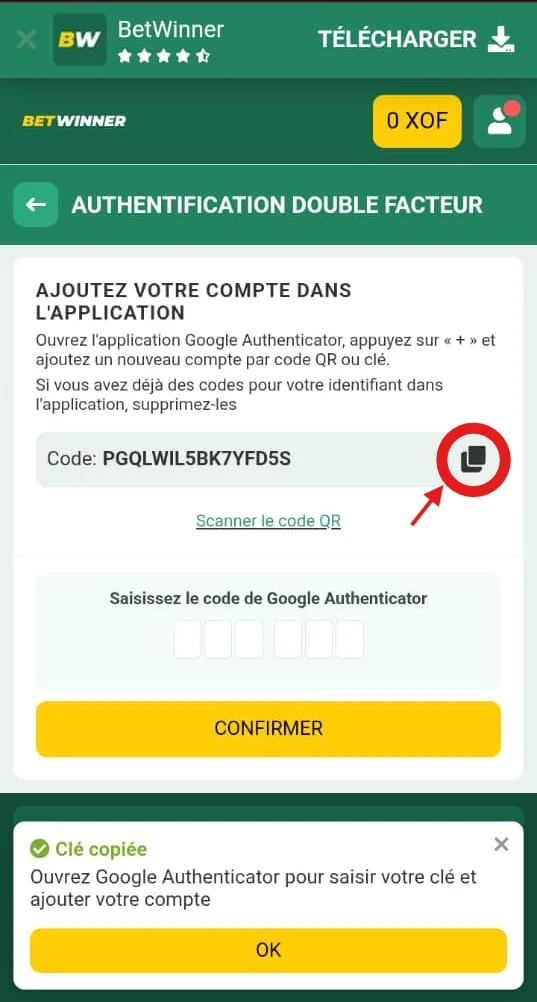
- If you prefer not to use the QR code, choose the activation-key setup option on Betwinner.
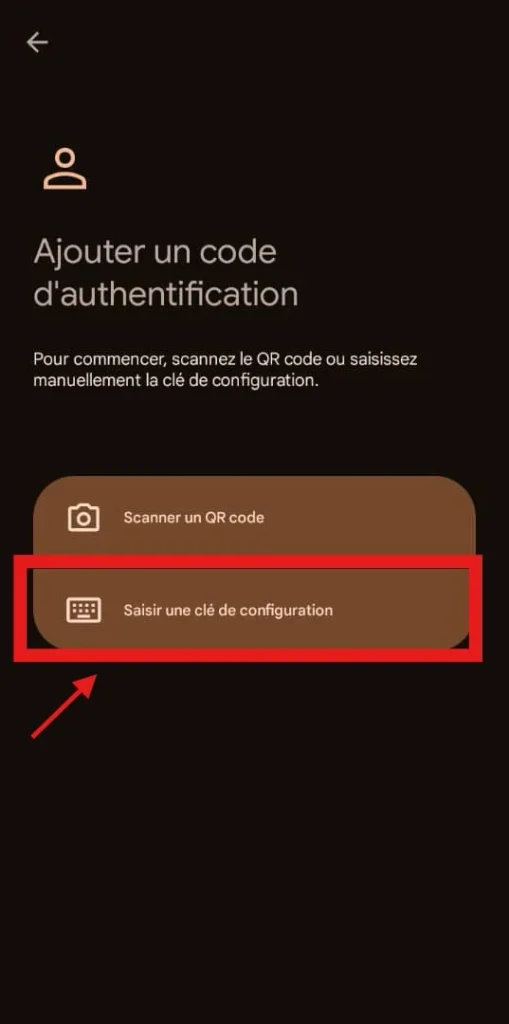
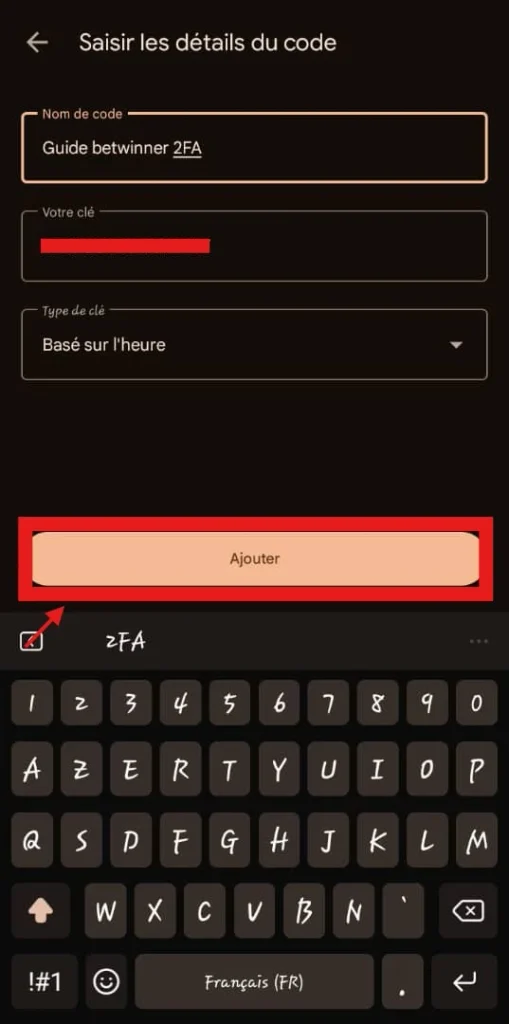
- Copy the displayed secret key, then open Google Authenticator and choose to add an account manually.
- Enter the requested information, including the key in the designated field, then confirm.
- Use the code generated by the app to complete setup on Betwinner.
NB :
Confirm that two-factor authentication is enabled
Confirm that two-factor authentication is enabled
Protect your account
- Never share your verification code with anyone.
- Never share your setup QR code or secret key.
- Keep access to Google Authenticator and your phone.
- If you change phones, make sure you can recover your configuration before losing access to your old device.